
Managing User Access and Permissions.
The Access Management tab is where you control who on your team can access your Edu-Intelligence.ai products and what they are allowed to see and do. Properly managing user roles is essential for ensuring your team can collaborate securely and effectively.
How to Grant Access
Follow these steps to give a team member access to the platform:
User Roles & Permissions
Different permission levels can be assigned to team members depending on their responsibilities. Multiple roles may be granted to a single user if needed.
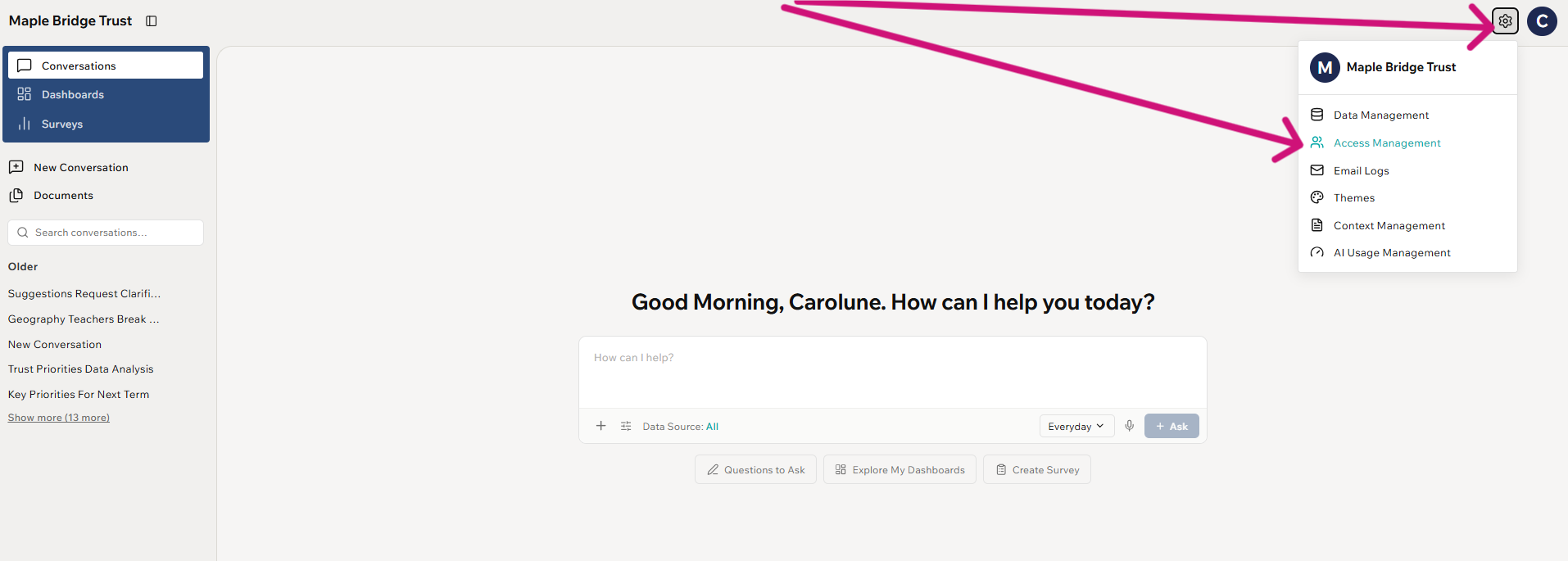
From your homepage click on the settings cog in the top right hand corner.
Then select 'Access Management'
🔒 Note: If a user has access to more than one site (e.g., multiple schools within a trust), their assigned permissions will apply across all of those sites.
Available Roles
Analyse: Grants access to survey results and enables the user to view and interpret data within Edu Intelligence.
Respond: Allows the user to respond to staff comments and feedback following surveys.
Survey Administration: Enables the user to create, edit, and close surveys.
Data Administration: Provides access to manage all data relating to staff, students, and parents, including Wonde integrations.
User Administration: Allows the user to add, edit, or remove other users' access and change their permission levels.
Owner: This role gives full access to all platform functions.
⚠️ The Owner role is typically assigned to one or two key contacts. Owners are the main point of contact for any queries related to your account.
Site Access
Individual Schools: If you are an individual school, access is automatically granted to your site, so there is no need to manually assign it.
Multi-Academy Trusts (MATs): If you are part of a Trust, you can grant users access to specific schools or all schools within your trust.
What Happens Next?
Once you save a new user, they will automatically receive an email with a secure link to activate their account.
⏳ Important: This activation link is time-sensitive and expires 48 hours after it is sent. You can resend this link by clicking on the circle arrow next to their name. They will be under 'pending' activation.