
How to Upload Staff Records
VIDEO COMING SOON
To run a staff survey, you first need to upload your staff list. There are two ways to do this:
1. Wonde (MIS Connection): Staff data can be imported automatically through a Wonde connection. However, this method often requires manual adjustments afterwards - for example, updating filters like job titles - data in your Management Information System (MIS) is not always fully accurate. See the article: Connect Your Data for more information on Wonde.
2. Manual Excel Upload: You can upload all staff information using our Excel template.
This guide explains the manual Excel template method.
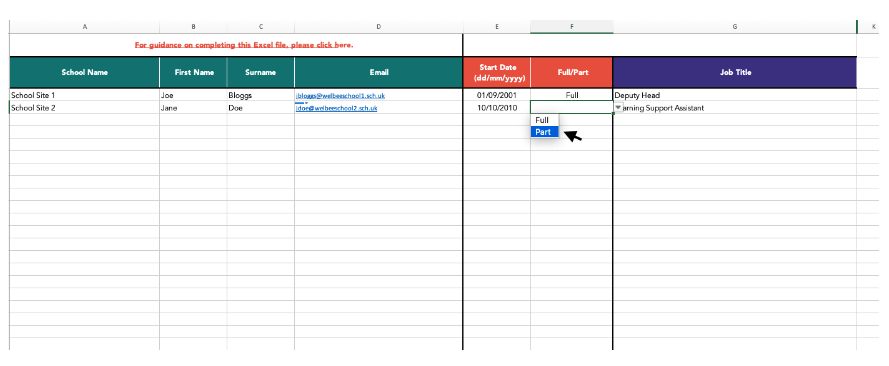
Step 1: Download the Staff List Template
You must use our official template to format your data.
⬇️ Download: Trust Staff List Template.
⬇️ Download: Single School Staff List Template (Not for schools who are part of a MAT)
Step 2: Fill in the Template
Open the template and fill in the columns for each staff member. Please do not change the column titles in the header row.
Staff & School Details
School Name: Required only if you are part of a multi-school group or trust.
First Name
Last Name
Email Address
Why we need this: This basic information is used to send unique survey invitations and reminders. It also enables the system to manage anonymous comment replies without revealing staff identities.
Role Information
Start Date: Must be in
dd/mm/yyyyformat (e.g., 23/09/2020).Full or Part-time?: Select 'Full' or 'Part' from the dropdown menu.
Main Job Title: Enter the staff member's single, primary job title.
❗️ Important: Choosing the 'Main Job Title'. This is the most critical field for ensuring your survey results are clear and useful. This single field is used to automatically create your 'Job Role', 'Department', and 'Year Group' filters.
What to choose: This should be the role they spend the most time on or their most senior position.
Example: A "KS2 Pastoral Assistant" who also performs midday duties should have the main job title "KS2 Pastoral Assistant".
Consistency: If multiple staff have similar roles, use the exact same job title for all of them (e.g., use "Teaching Assistant" for everyone, not a mix of "TA", "LSA.", and "Teaching Assistant").
Step 3: Upload Your Completed File
Once your template is complete and saved:
Log in to your home hub (home.welbee.co.uk).
Navigate to the 'Data Management' section.
Upload your completed staff list file.
Alternatively: You can email the completed template directly to our support team at support@welbee.co.uk.
Step 4: Check and Adjust Your Filters (Crucial Step)
The system automatically creates filters, but you must check them.
The system's automatic settings are just a suggestion. We strongly advise you to check and manually adjust these filters to ensure your data is accurate before sending any surveys.
Your 4-Step Checking Process
Upload your staff list (as you did in Step 3).
Download the template immediately from the 'Data Management' section. This download will now include the filters the system has automatically assigned.
Manually adjust any filters (such as Department, Job Role, and Year Group/Key Stage) directly in the file to match your needs.
Re-upload the saved template. This action will override the system's automatic data with your new, correct information.
Always download the file one final time to double-check that all filters are exactly as you want them before sending out any surveys.
Understanding the Filter Types
This is what you are checking in Step 4. Filters are set in two ways:
1. Filters You Set Directly These are pulled directly from the data you provided.
Time at School: (Based on 'Start Date')
Job Type: (Based on 'Full or Part-time?')
Job Title: (Based on the exact 'Main Job Title' you entered)
2. System-Assisted Filters (The ones to check!) The system suggests these by reading the 'Main Job Title' you provided. You can, and should, override these as needed.
Job Roles: (e.g., Support Staff, Teacher, Leader)
Department/Subject: (e.g., Maths, Office, Catering)
Year Group/Key Stage: (e.g., Year 1, Key Stage 2)
How System-Assisted Filtering Works
For Job Roles: The system groups your 'Main Job Title' into broader categories.
Example 1: You enter "Deputy Head" → We filter this into the "Senior Leader" Job Role.
Example 2: You enter "Teaching Assistant" → We filter this as "Support Staff Classroom".
Example 3: You enter "Maths Teacher" → We filter this as "Teaching Staff Classroom".
For Department & Year Group: The system scans the 'Main Job Title' for keywords.
Example 1: A job title of "Head of Maths" will be automatically assigned to the Maths department.
Example 2: A job title of "Year 7 Music Teacher" will be automatically assigned to the Year 7 group.
This is why it's vital to use the "Download > Check > Re-upload" process to ensure a "Year 7 Music Teacher" is also correctly assigned to the Music department.
A Note on Anonymity: The 'Rule of 5'
To ensure staff feel safe to answer honestly, all responses in anonymous surveys are confidential. We only show results for a filter group (like a specific Job Title or Department) if at least 5 staff in that group complete the survey.
Important: If a group has 8 people, but only 4 complete the survey, the results for that specific group will not be displayed. This protects the anonymity of the respondents.
- Further information on anonymity in this article: Anonymity
Go to this article for - How To Amend your Staff List